Sample
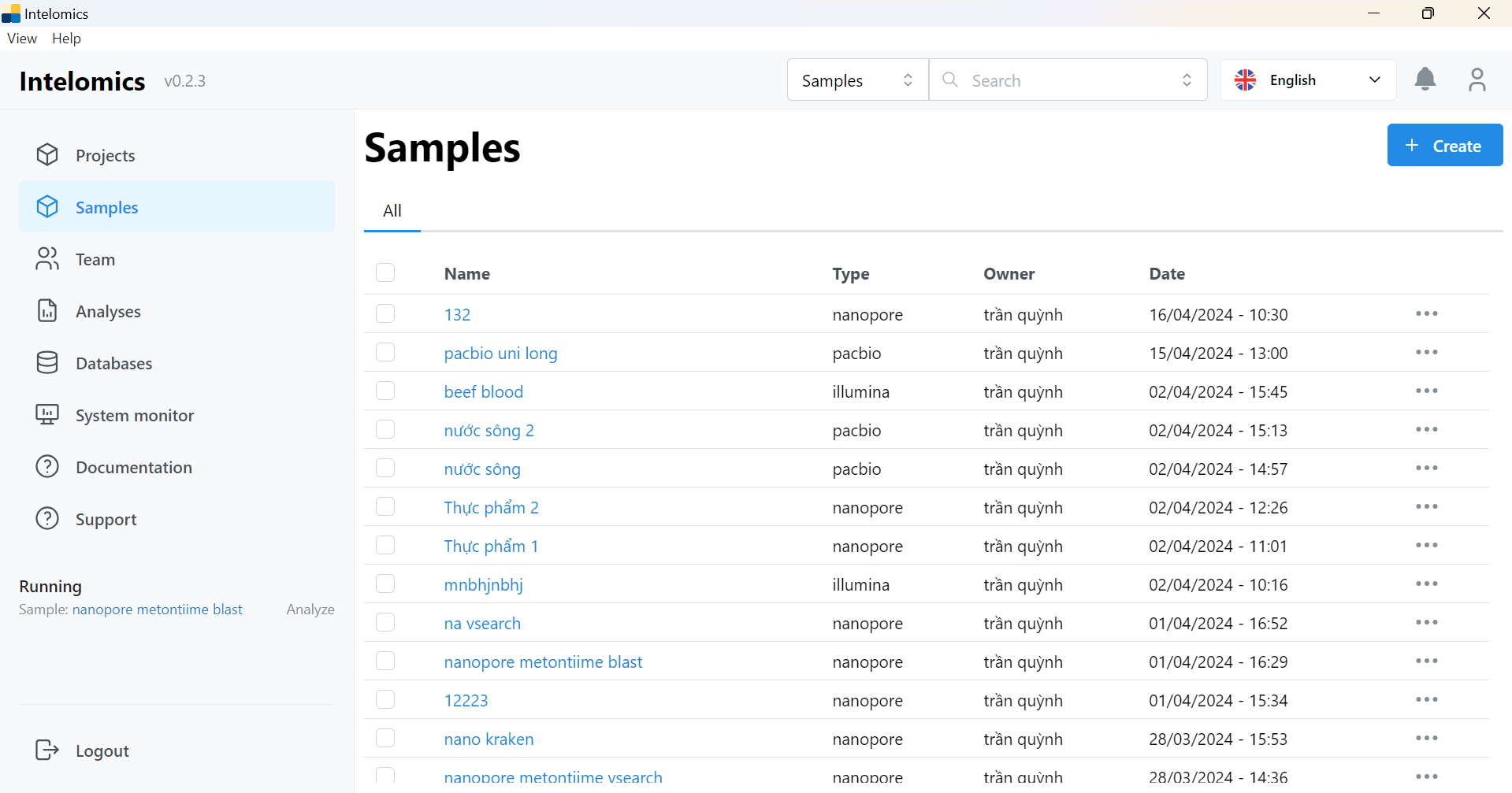
This is the interface image of Samples
When you click the Create button, you will see the interface as shown below:
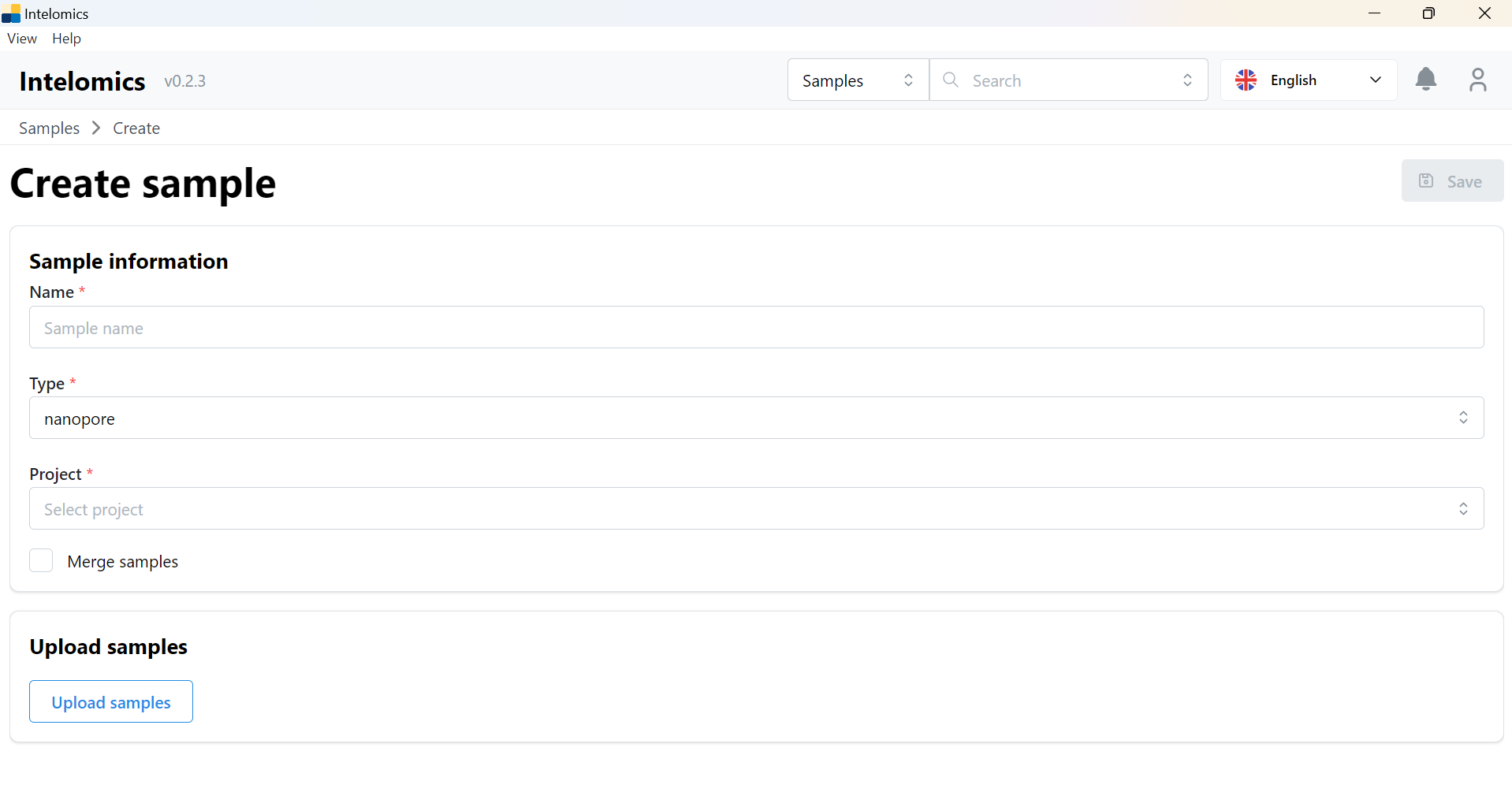
User have to input name, choose type (pacbio, nanopore, dbcseq or illumina), choose project (illumina, nanopore or project pacbio) and click Upload samples button
When user choose type nanopore, user can choose:
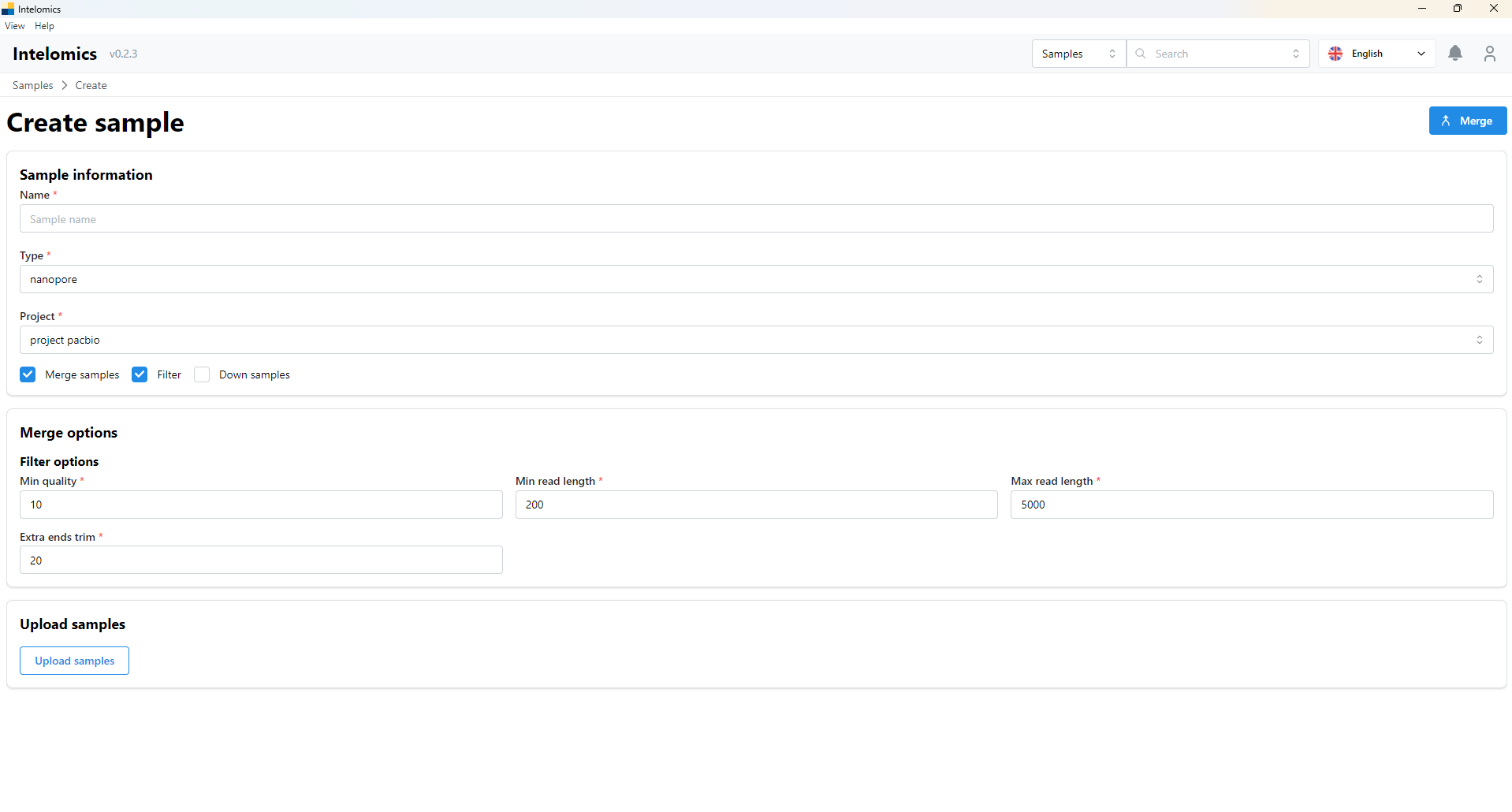
- Merge samples: click Merge samples, then click Merge button is on the top-right hand of the application
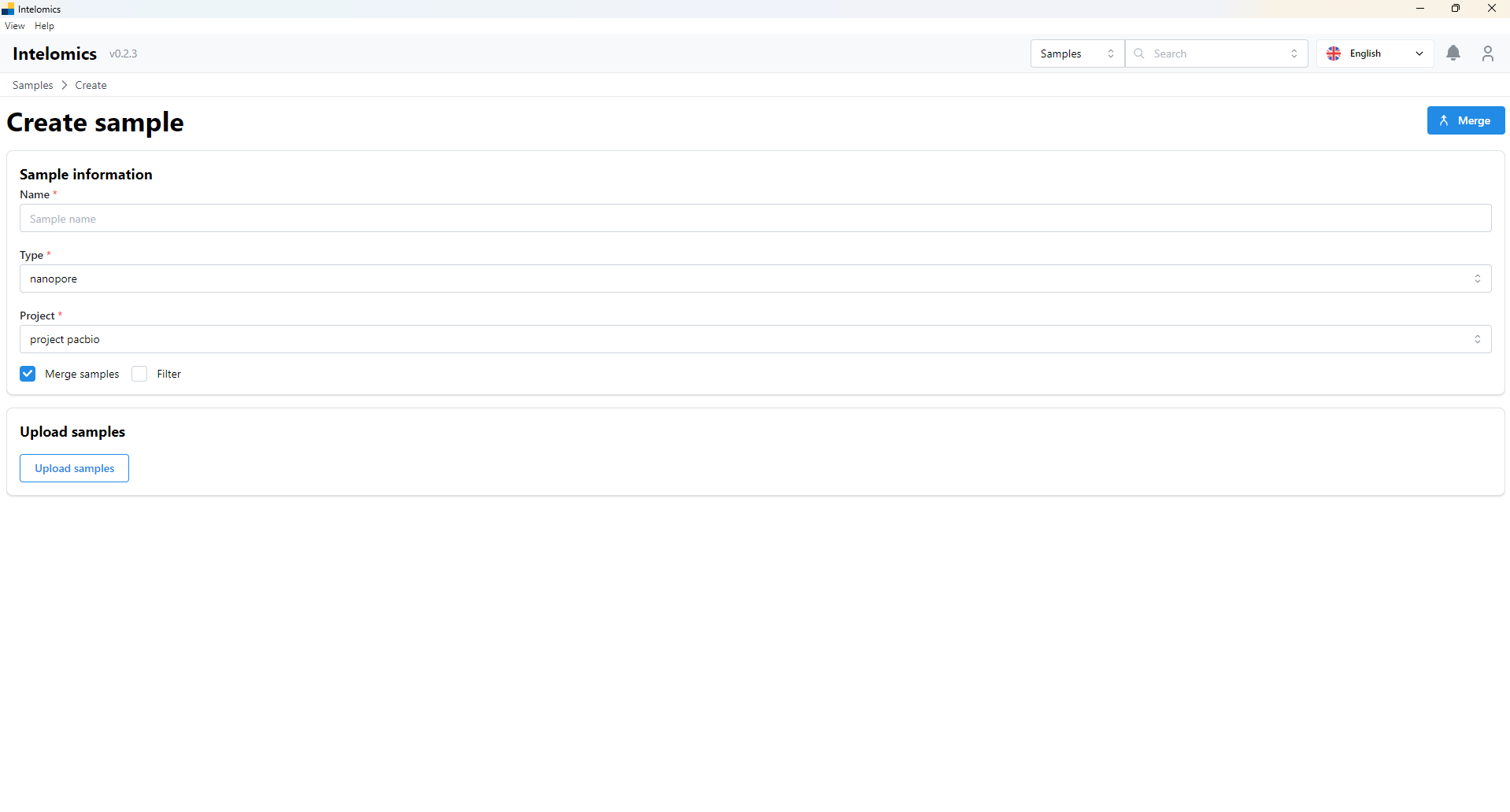
- Merge samples and Filter: user have to option Merge samples and Filter, then user enters parameters into input boxes such as:
- Min quality
- Min read length
- Max read length
- Extra ends trim
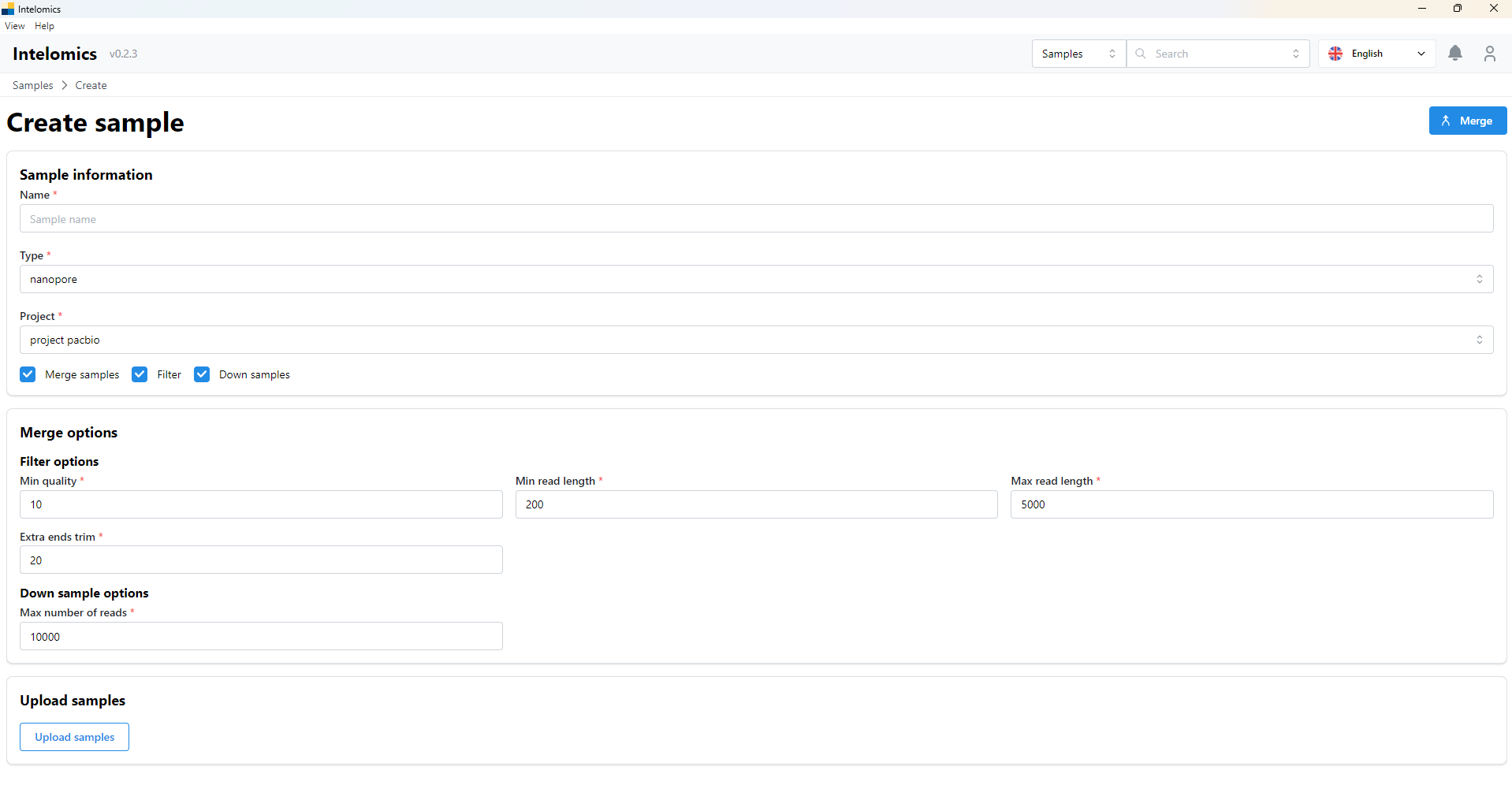
- Merge samples, Filter and Down samples: user have to option Merge samples, Filter and Down samples, then user enters parameters into input boxes such as:
- Min quality
- Min read length
- Max read length
- Extra ends trim
- Max number of reads
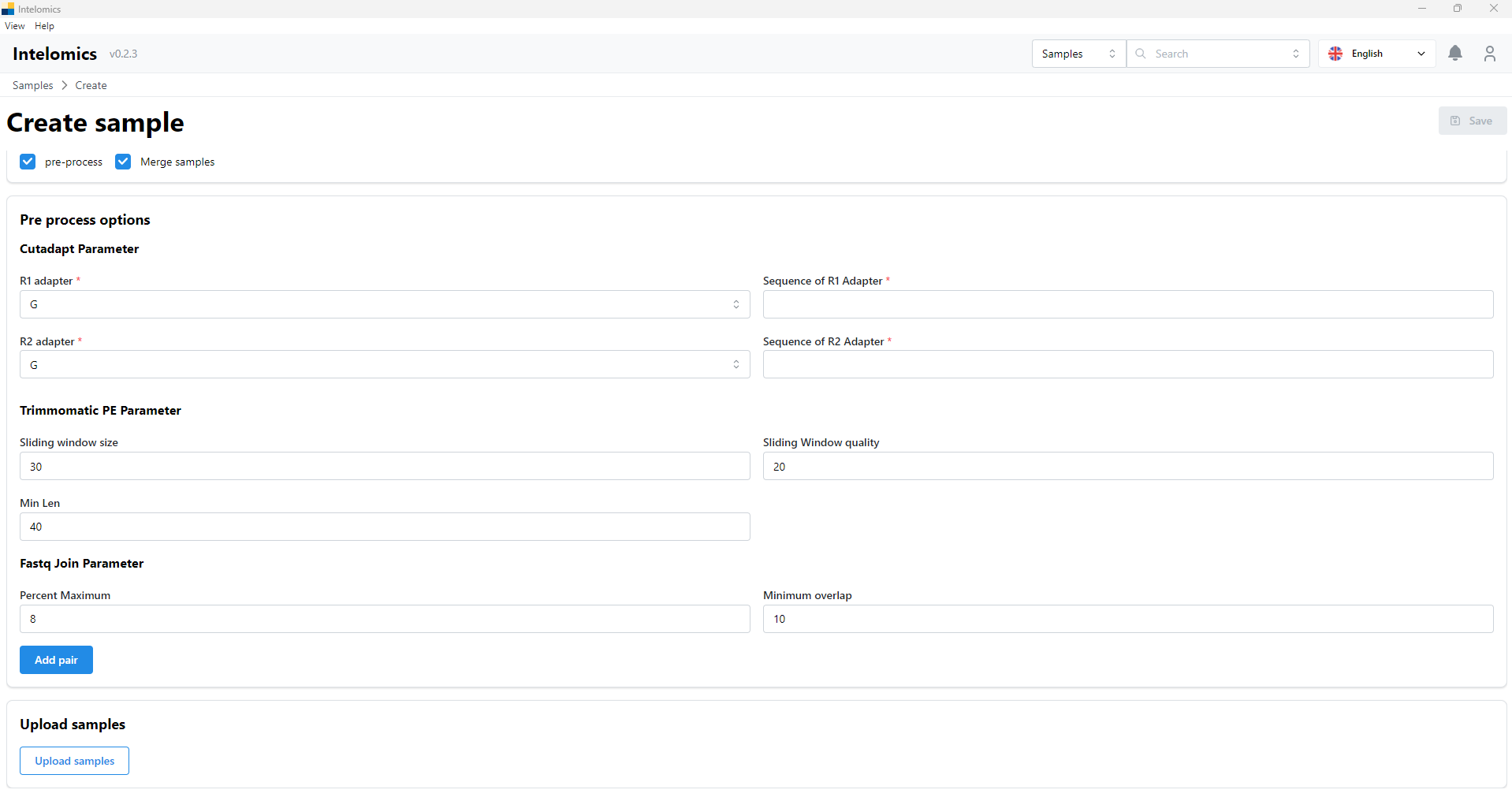
When user choose type illumina, user can option:
-
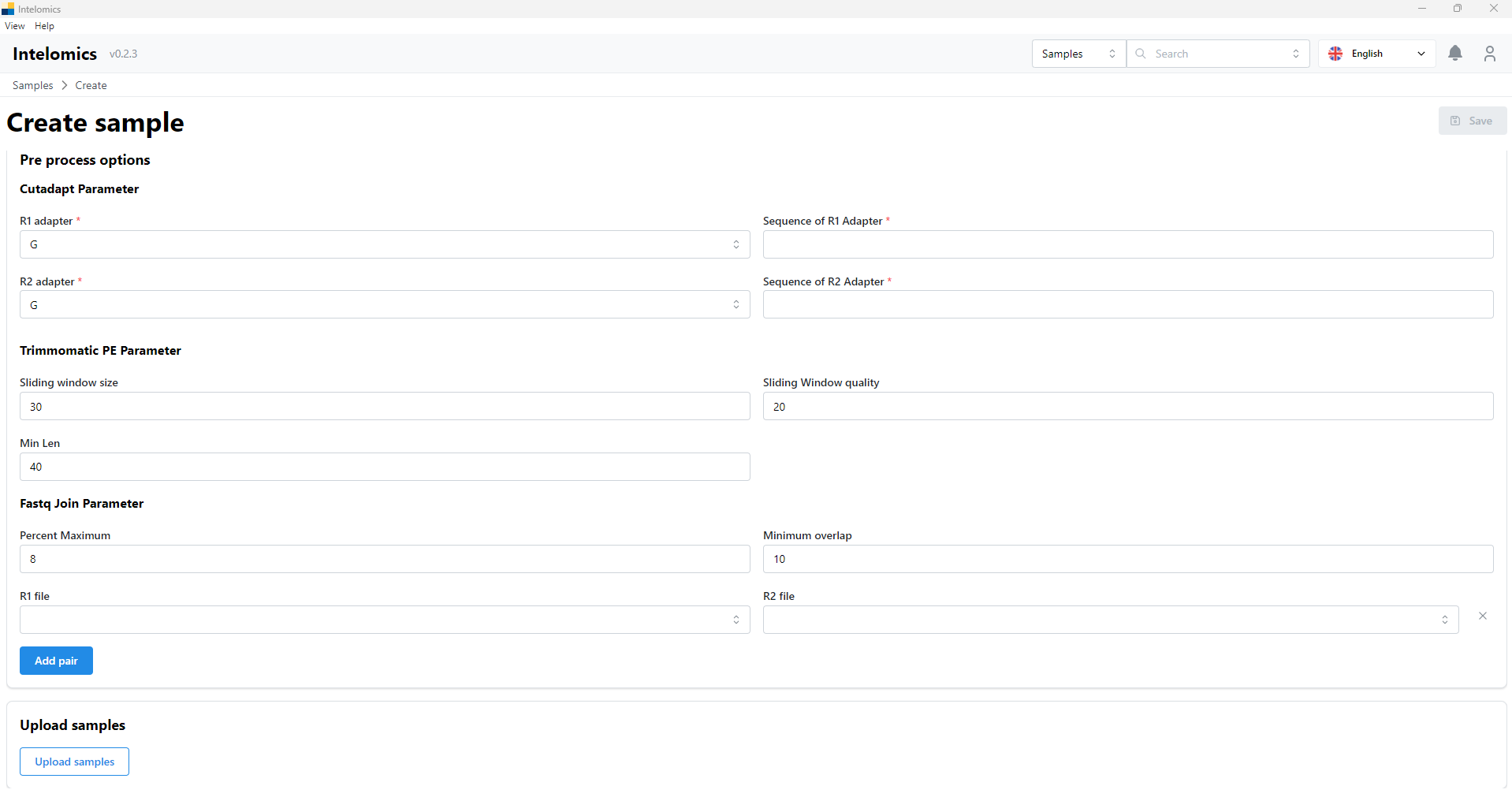
Pre-process: user have to enter parameters into input boxes such as:
- R1 adapter
- R2 adapter
- Sequence of R1 Adapter
- Sequence of R2 Adapter
and users can enter parameters into input boxes such as:
- Sliding window size, Sliding Window quality, Min Len
- Percent Maximum, Minimum overlap
- R1 file, R2 file
Then user upload samples and click Save button is on the top-right hand of the application
-
Pre-process and Merge samples: user have to enter parameters into input boxes such as:
- R1 adapter
- R2 adapter
- Sequence of R1 Adapter
- Sequence of R2 Adapter
and users can enter parameters into input boxes such as:
- Sliding window size, Sliding Window quality, Min Len
- Percent Maximum, Minimum overlap
- R1 file, R2 file
Then user upload samples and click Save button is on the top-right hand of the application